
国内用户必看】用Lima在macOS免费搭建Docker环境,彻底解决镜像与收费难题!
为了在不同操作系统有一致操作体验,我选择使用docker技术安装ollama,这样子还有一个好处,即使玩坏了,删除重建即可,所以首先需要在开发机上安装docker,从2024年开始在国内使用docker难度越来越大,主要有2大原因:
- docker开始收费了,办公电脑公司不让在安装docker桌面版了
- docker国内镜像一夜之间都不能用了,docker官方镜像在国内也是无法访问的
下面是在 macOS 上使用 limactl 安装和配置 Docker 的完整步骤。这个方法比 Docker Desktop 更轻量且完全免费。
准备工作
确保你的 macOS 系统已更新到较新版本
确保已安装 Homebrew(macOS 包管理器)
lima&docker安装步骤
步骤 1: 安装 Lima
打开终端(Terminal),执行以下命令:
# 使用 Homebrew 安装 Lima
brew install lima
# 验证安装是否成功
limactl --version
步骤 2: 启动 Docker 实例
Lima 使用模板来创建预配置的虚拟机。我们将使用官方提供的 Docker 模板:
# 创建并启动一个名为 "docker" 的实例(使用非root用户模式,推荐)
limactl start --name=docker template://docker
注:除了可以使用官方模板也可以自定义配置文件,启动命令&配置文件&执行过程日志示例如下
# 与上面的命令 limactl start --name=docker template://docker 二选一执行即可
limactl start ~/work/docker/lima-default.yaml
arch: "aarch64"
# 基本系统配置
images:
- location: "https://cloud-images.ubuntu.com/releases/24.04/release/ubuntu-22.04-server-cloudimg-amd64.img"
arch: "x86_64"
- location: "https://cloud-images.ubuntu.com/releases/24.04/release/ubuntu-22.04-server-cloudimg-arm64.img"
arch: "aarch64"
# 系统配置脚本
provision:
- mode: system
script: |
#!/bin/bash
set -eux -o pipefail
# 安装 Docker
curl -fsSL https://get.docker.com | sh
# 将用户添加到 docker 组
usermod -aG docker "${LIMA_USER}"
# 安装 Docker Compose 插件
apt-get install -y docker-compose-plugin
# 挂载配置
mounts:
- location: "~"
mountPoint: "/home/${LIMA_USER}.linux"
# 端口转发(关键!让主机可以访问虚拟机内的 Docker)
portForwards:
- guestSocket: "/var/run/docker.sock"
hostSocket: "${LIMA_HOST_HOME}/.lima/docker/sock/docker.sock"
# 其他配置
ssh:
localPort: 60022
containerd:
system: false
user: false? Creating an instance "docker" Proceed with the current configuration
INFO[0001] Replacing "http_proxy" value "socks5h://127.0.0.1:13659" with "socks5h://192.168.5.2:13659"
INFO[0001] Replacing "https_proxy" value "socks5h://127.0.0.1:13659" with "socks5h://192.168.5.2:13659"
INFO[0001] Starting the instance "docker" with VM driver "vz"
INFO[0001] Attempting to download the image arch=aarch64 digest= location="https://cloud-images.ubuntu.com/releases/24.04/release/ubuntu-24.04-server-cloudimg-arm64.img"
INFO[0007] Using cache "/Users/mac/Library/Caches/lima/download/by-url-sha256/002fbe468673695a2206b26723b1a077a71629001a5b94efd8ea1580e1c3dd06/data"
INFO[0007] Converting "/Users/mac/.lima/docker/basedisk" (qcow2) to a raw disk "/Users/mac/.lima/docker/diffdisk"
3.50 GiB / 3.50 GiB [---------------------------------------] 100.00% 1.56 GiB/s
INFO[0009] Expanding to 100GiB
INFO[0010] Attempting to download the nerdctl archive arch=aarch64 digest="sha256:544fa1e518155fcc01a117ea49819d12d96b4dacfb2b62922f9f7956dc9f6dc8" location="https://github.com/containerd/nerdctl/releases/download/v2.1.3/nerdctl-full-2.1.3-linux-arm64.tar.gz"
INFO[0010] Using cache "/Users/mac/Library/Caches/lima/download/by-url-sha256/46d9ee12c9f3f484518470db8093719f2b3ddca7daa6f1741c71e0aeb198db2a/data"
INFO[0010] [hostagent] Replacing "http_proxy" value "socks5h://127.0.0.1:13659" with "socks5h://192.168.5.2:13659"
INFO[0010] [hostagent] Replacing "https_proxy" value "socks5h://127.0.0.1:13659" with "socks5h://192.168.5.2:13659"
INFO[0010] [hostagent] Replacing "http_proxy" value "socks5h://127.0.0.1:13659" with "socks5h://192.168.5.2:13659"
INFO[0010] [hostagent] Replacing "https_proxy" value "socks5h://127.0.0.1:13659" with "socks5h://192.168.5.2:13659"
INFO[0011] [hostagent] hostagent socket created at /Users/mac/.lima/docker/ha.sock
INFO[0011] [hostagent] Starting VZ (hint: to watch the boot progress, see "/Users/mac/.lima/docker/serial*.log")
INFO[0012] SSH Local Port: 60022
INFO[0011] [hostagent] Waiting for the essential requirement 1 of 2: "ssh"
INFO[0011] [hostagent] [VZ] - vm state change: running
INFO[0021] [hostagent] Waiting for the essential requirement 1 of 2: "ssh"
INFO[0031] [hostagent] Waiting for the essential requirement 1 of 2: "ssh"
INFO[0041] [hostagent] Waiting for the essential requirement 1 of 2: "ssh"
INFO[0052] [hostagent] Waiting for the essential requirement 1 of 2: "ssh"
INFO[0062] [hostagent] Waiting for the essential requirement 1 of 2: "ssh"
INFO[0072] [hostagent] Waiting for the essential requirement 1 of 2: "ssh"
INFO[0082] [hostagent] Waiting for the essential requirement 1 of 2: "ssh"
INFO[0092] [hostagent] Waiting for the essential requirement 1 of 2: "ssh"
INFO[0102] [hostagent] Waiting for the essential requirement 1 of 2: "ssh"
INFO[0112] [hostagent] Waiting for the essential requirement 1 of 2: "ssh"
INFO[0122] [hostagent] Waiting for the essential requirement 1 of 2: "ssh"
INFO[0132] [hostagent] Waiting for the essential requirement 1 of 2: "ssh"
INFO[0142] [hostagent] Waiting for the essential requirement 1 of 2: "ssh"这个过程会:
- 下载 Ubuntu 基础镜像
- 在虚拟机内自动安装 Docker、Docker Compose 和其他相关工具
- 配置文件共享和端口转发
- 可能需要几分钟时间,取决于你的网络速度
步骤 3: 配置 Shell 环境
安装完成后,需要设置环境变量,让 macOS 上的 Docker CLI 能够与 Lima 虚拟机中的 Docker 引擎通信:
# 将以下行添加到你的 shell 配置文件(~/.zshrc 或 ~/.bash_profile)
echo 'export DOCKER_HOST="unix://${HOME}/.lima/docker/sock/docker.sock"' >> ~/.bash_profile
# 使配置生效
source ~/.bash_profile
步骤 4: 验证安装
测试 Docker 是否正常工作:
# 检查 Docker 版本
docker --version
# 运行测试容器
docker run --rm hello-world
# 查看 Docker 系统信息
docker info
如果这些命令都能正常执行并返回信息,而没有报错说无法连接到 Docker 守护进程,那么就说明您的 Shell 环境已经配置成功!
总结
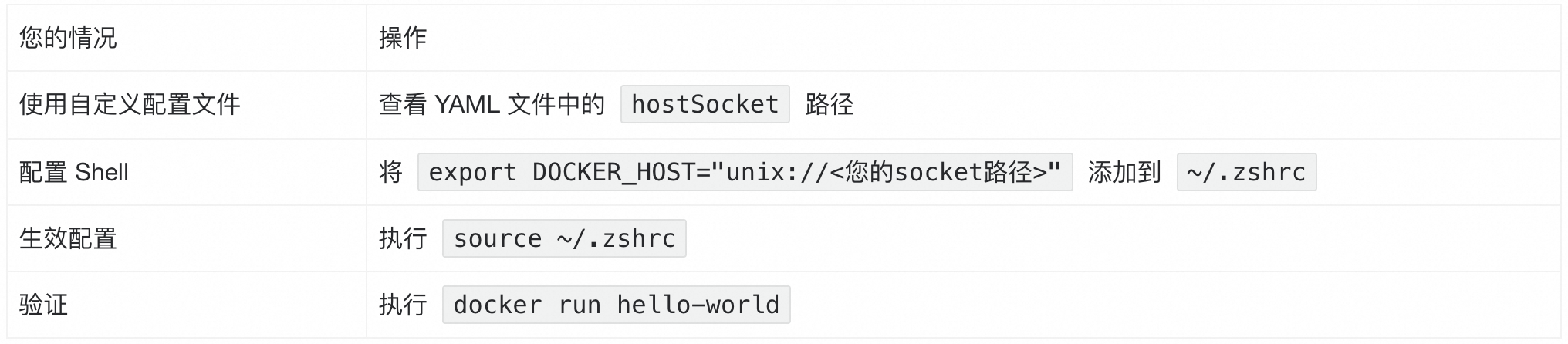
附加常用命令
limactl list
NAME STATUS SSH VMTYPE ARCH CPUS MEMORY DISK DIR
docker Stopped 127.0.0.1:60022 vz aarch64 4 4GiB 100GiB ~/.lima/docker
limactl delete docker
INFO[0000] The vz driver process seems already stopped
INFO[0000] The host agent process seems already stopped
INFO[0000] Removing *.pid *.sock *.tmp under "/Users/mac/.lima/docker"
INFO[0000] Deleted "docker" ("/Users/mac/.lima/docker")
limactl list
WARN[0000] No instance found. Run `limactl create` to create an instance.
ollama&Phi-3:mini安装步骤
这部分之前已经整理过了,详情见:https://alioo.blog.csdn.net/article/details/150591424