
[1134] Connecting to Land Insight SFTP and GIS Servers
Hi Sir Bing,
Greetings!
Please be informed of your user credentials to servers. Also attached is the Work Instruction and PPK to connect to servers for your reference.
Bastion: 44.250.82.181
Username: bingnan.li
Passphrase: b1NgN@nl!5461L1
LI-GIS (Windows): 10.0.9.147
SFTP Server 1 (Linux): 10.0.12.52
SFTP Server 2 (Linux): 10.0.15.66
--->
Username: bingnan.li
Password: P@ssw0rdL!@2025
Kindly send us a message for any inquiries or concerns. Have a great one. Thank you.
1. Connect to Bastion Server.
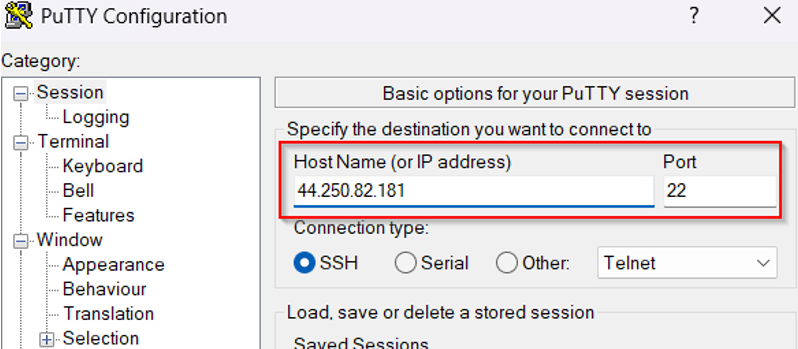
Open Putty and input the Bastion Public IP Address: 44.250.82.181, Port: 22
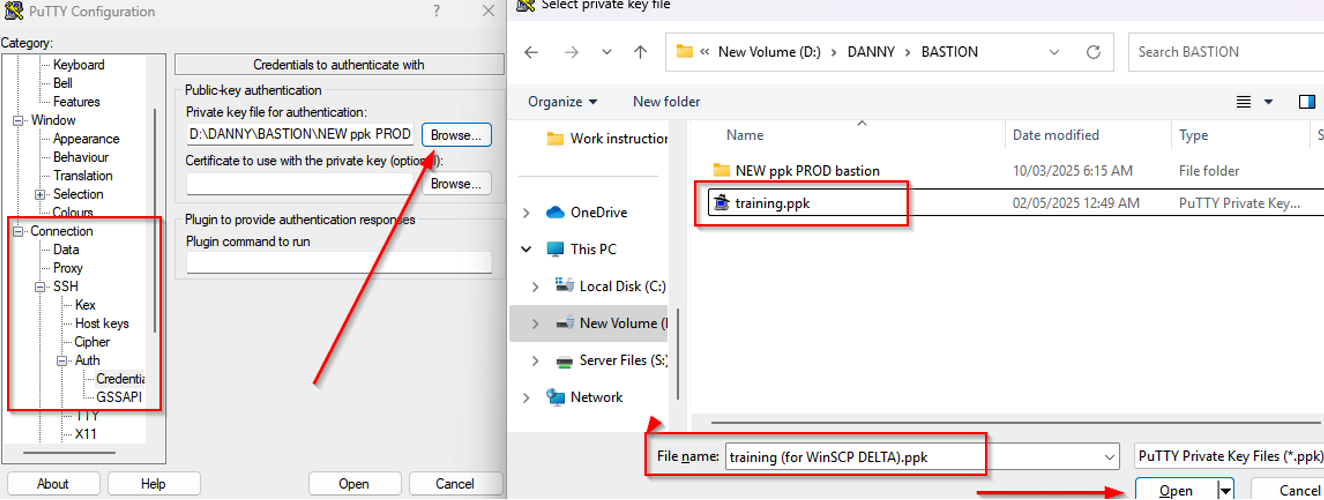
On the Left pane, go to Connection > SSH > Auth > Credentials, point to “Private key file for authentication”, click Browse and locate the private key (PPK) provided and click Open.
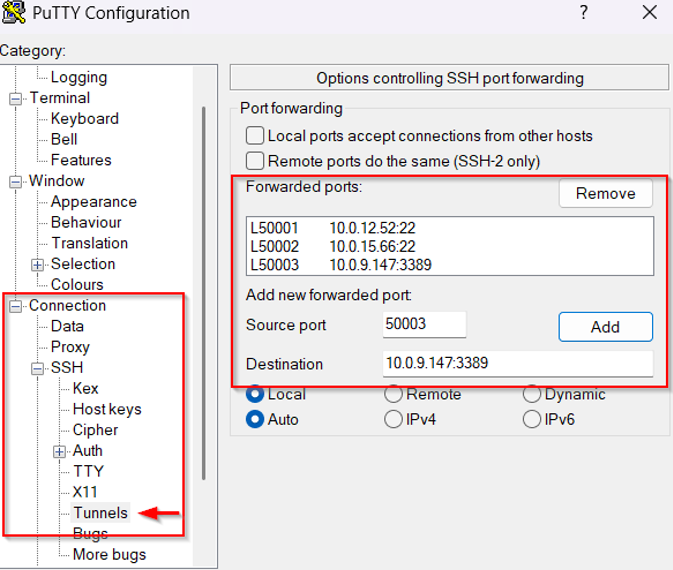
Stil on the Left pane, go to Connection > SSH > Tunnels and input the following information:
Source Port: 50001, Destination: 10.0.12.52:22 and then click the Add button, it will appear on the “Forwarded ports”.
Please do the same steps again for the following:
Source Port: 50002, Destination: 10.0.15.66:22
Source Port: 50003, Destination: 10.0.9.147:3389
Save the information provided, on the Left pane click to Session then point to Saved Sessions and supply the name of the session: “Bastion nonPROD” then click the Save button.
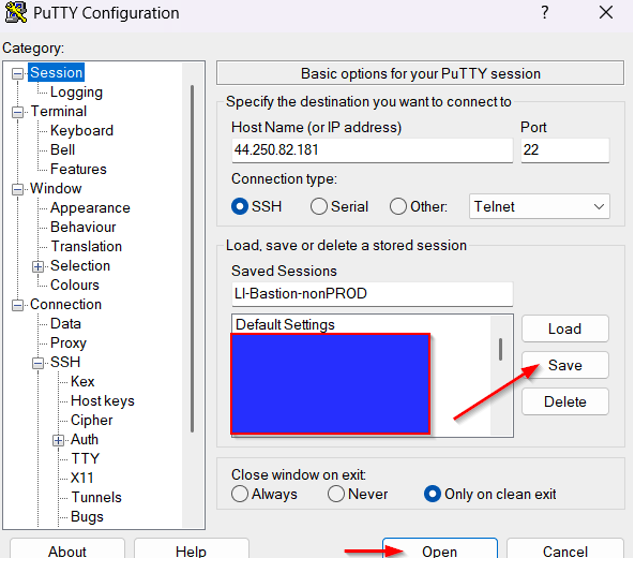
To connect to Bastion Server, click the Open button and supply and Username and Passphrase then press enter and let this putty window open.
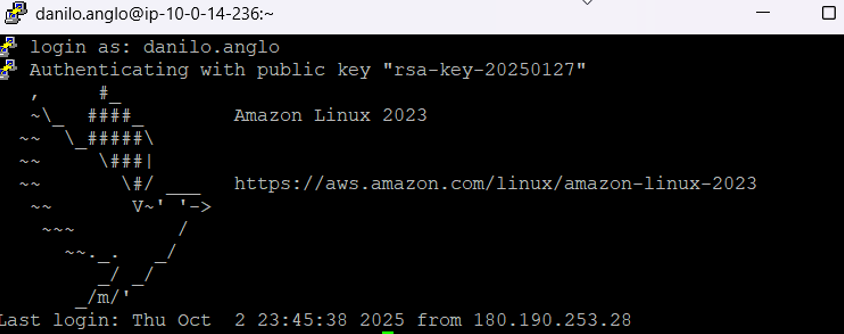
2. To Connect to GIS Server:
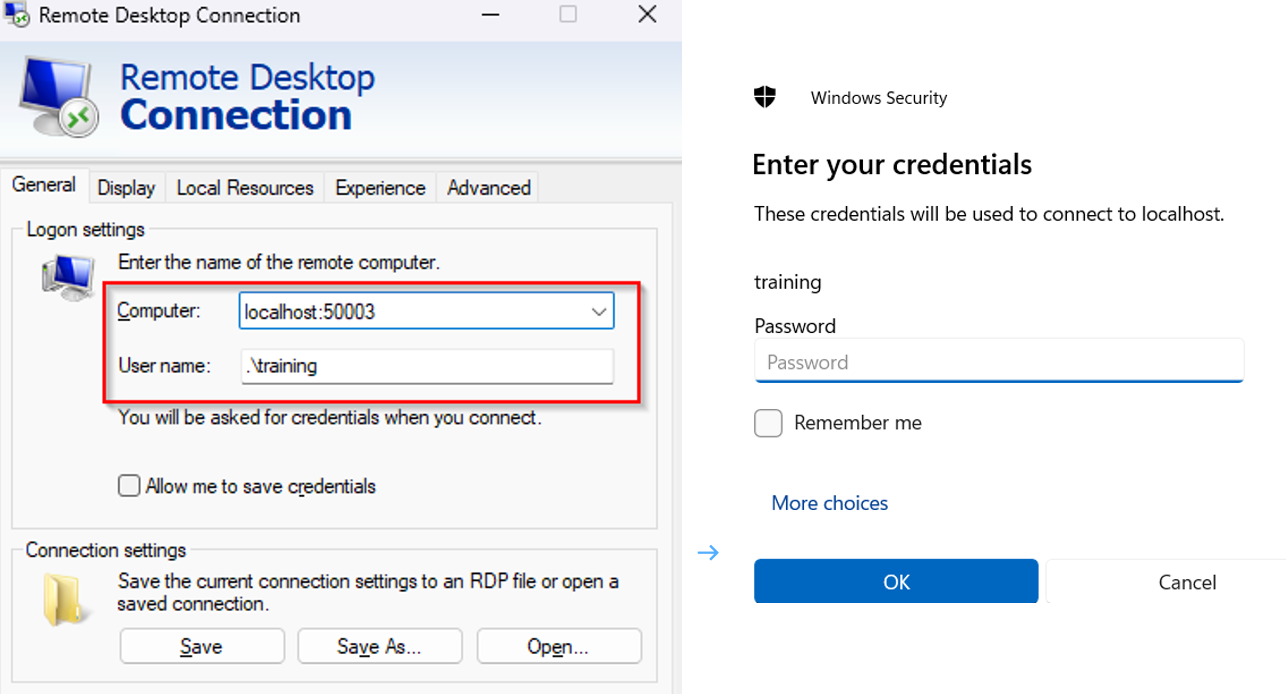
Open your Remote Desktop Connection application. On Computer, enter “localhost: 50003” and on User Name input the supplied User Account Name “.\Username” and click Connect.
A dialog box will open, supply your Password and click OK.
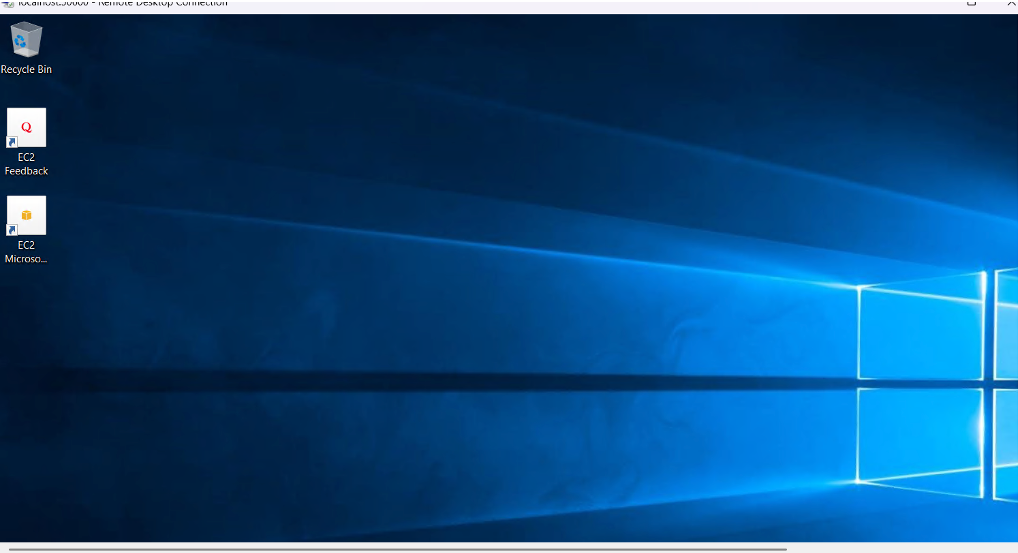
You will be now connected to GIS Server via Bastion server.
3. To Connect to SFTP Server using FileZilla:
Open the FileZilla application and supply the following information:
Host: sftp://localhost
Username: [Username]
Password: [Password]
Port: 50001
Note:
Port 50001 – SFTP1 Server
Port 50002 – SFTP2 Server
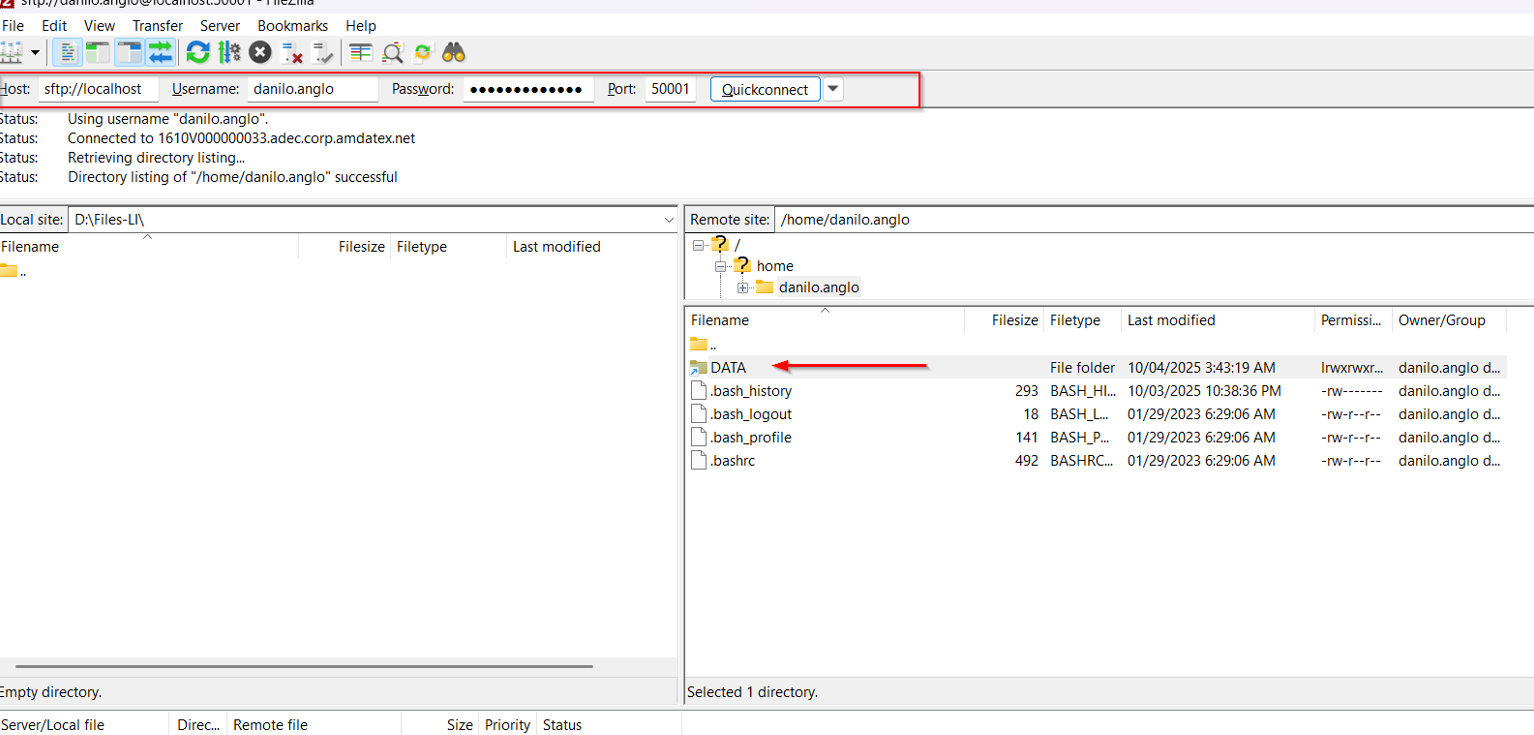
You will be now connected to SFTP Server.