
If you’re trying to turn real footage into “anime-looking” clips in 2026, the market basically splits into two workflows:
- Video-to-video style transfer (you already have footage; you want an anime “skin” while preserving motion), and
- Generative video (text/image → video, often more cinematic but less faithful to your original shot).
This list is written from a practical, production-minded angle: output consistency, learning curve, control, speed, and cost predictability—with extra weight on “how fast a beginner can get a clean result.”
Quick picks (TL;DR)
| Rank | Tool | Best for | Why it’s here |
|---|---|---|---|
| #1 | LensGo AI | Fast anime conversion + easy experiments | The most “all-in-one” beginner workflow (text→video, video→anime, style transfer, image reference) |
| #2 | Runway | Higher-end control & editing workflow | Best if you want pro-style knobs and a broader toolset |
| #3 | Pika | Quick creative shorts | Great for rapid iteration and social-first clips |
| #4 | Kaiber | Music-driven, stylized edits | Strong “vibe” tool for audio-reactive visuals |
| #5 | GoEnhance (Video Style Transfer) | Preset-driven restyling | Straightforward restyle pipeline and lots of styles |
1) LensGo AI (Best Overall for Beginners in 2026)
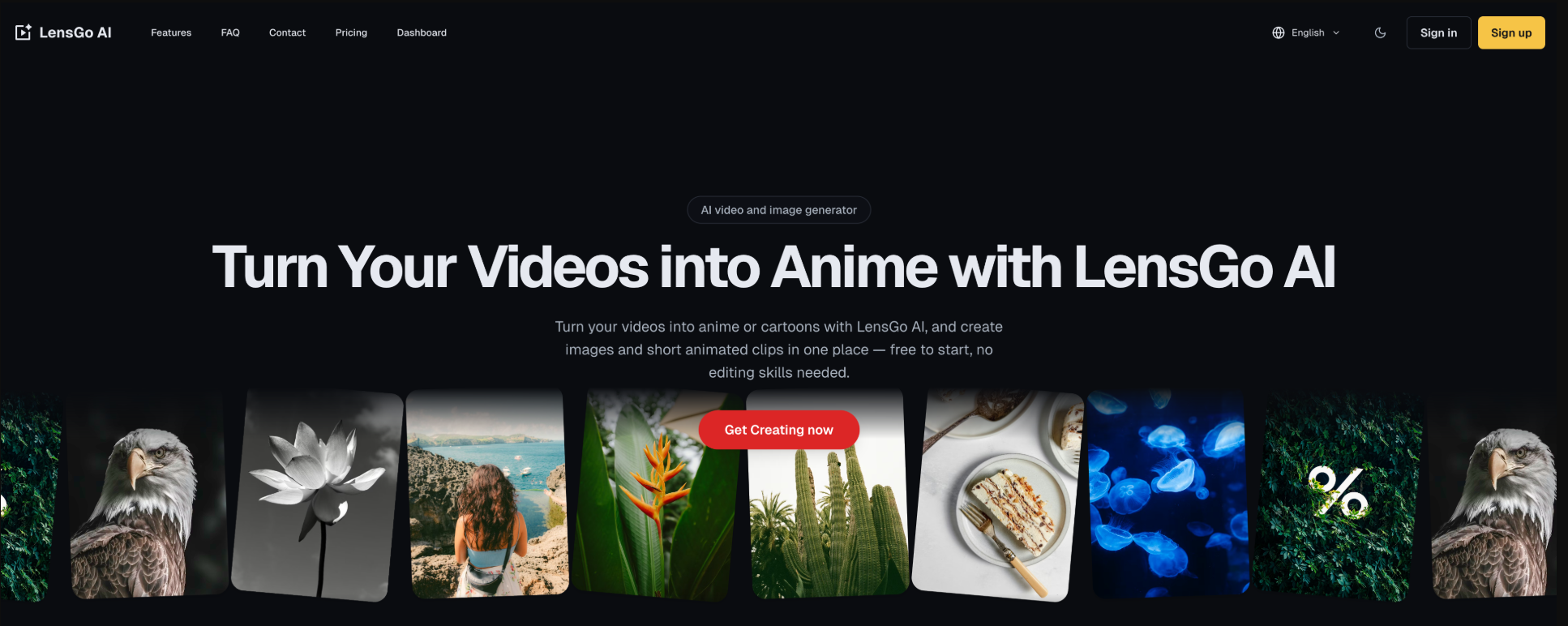
If your goal is “turn my real video into anime” with minimal setup, LensGo AI is the most beginner-friendly on this list, while still giving enough control to avoid the “one-click gimmick” feel.
What LensGo AI is best at
LensGo AI shines when you want a repeatable workflow:
- Text-to-video: generate short clips from prompts.
- Animate an existing video: upload a clip and guide the transformation with a prompt.
- Style Transfer (Video-to-Video): apply a ready-made anime/cartoon/3D style, or use a single image as a style reference.
- Image-to-video: useful for turning keyframes/illustrations into motion.
In other words: it behaves like a small “browser studio” rather than a single effect.
Beginner workflow (you can follow this today)
Here’s a simple process that consistently works:
-
Start with a short, stable clip
- For “Animate Video,” LensGo expects short uploads (the tutorial example highlights 10 seconds or less for that mode).
-
Pick a model/style first
- Don’t overthink prompts until you’ve locked the look.
-
Write a prompt that describes motion + subject + vibe
- Example:
“Close-up of a skateboarder carving downhill, dynamic anime shading, crisp linework, cinematic lighting, slight handheld camera.”
- Example:
-
Use Style Transfer when you need fidelity
- When preserving original motion matters, style transfer is usually the safer route than pure text-to-video.
-
Preview, then generate
- LensGo’s style transfer flow emphasizes previewing styles and adjusting style intensity (low/high) before the final render.
LensGo AI strengths (Pros)
-
Low learning curve: the UI is structured around common tasks (generate, animate, style transfer), so beginners don’t get lost.
-
Practical control knobs (without complexity):
- Style intensity
- Option to affect the whole video vs. characters only (useful if you want to keep backgrounds readable)
- Prompt visibility/editability when you choose a preset style (so you can learn what’s driving the look)
-
Good “iteration loop”
- Generate → check → regenerate with new prompt/model is fast and encourages experimentation.
-
Token-based entry makes testing approachable
- The tutorial flow describes claiming starter tokens and a daily refresh mechanic, which is helpful for casual users who don’t want to subscribe immediately.
LensGo AI limitations (Cons / trade-offs)
-
Short clip constraints
- For beginners, the biggest surprise is that many AI anime conversions work best on short durations. LensGo is designed around that reality (e.g., the “Animate Video” upload being short).
-
Style transfer can reveal artifacts
- Fast motion, motion blur, low light, and detailed textures can cause “boiling lines,” flicker, or warped edges. This isn’t unique to LensGo—but it’s the main thing you’ll troubleshoot.
Pro tips for better anime results (LensGo edition)
-
Stabilize your source first (even basic phone stabilization helps).
-
Avoid fast whip pans; AI hates motion smear.
-
Describe render style, not plot
- “clean lineart, limited palette, cel shading, sharp edges” beats “inspired by my favorite show.”
-
Use “characters only” changes when backgrounds matter (street signs, UI overlays, product shots).
-
Lock a “house style”
- Pick 1–2 styles that fit your channel and reuse them; consistency makes outputs look more professional than endlessly changing aesthetics.
Who should choose LensGo AI?
Choose LensGo AI if you are:
- A beginner making TikToks/Shorts/Reels and want quick anime conversions
- A marketer needing stylized ads without an animation team
- A creator who wants one tool that covers “generate + restyle + animate” without a steep learning curve
2) Runway (Most “Production” Control)
Runway is the pick when you care about workflow control and want something closer to a production tool rather than a style toy. It’s often recommended as the “most complete professional tool” in general AI video comparisons.
Pros
- Strong creative control compared with lighter apps
- Better suited to multi-step workflows (generate → edit → refine)
Cons
- More features = more learning time
- Usually not the cheapest route for high iteration
Best for
- Creators who want higher-end knobs and a more “editor-like” process, not just a filter pass
3) Pika (Best for Fast, Fun Short-Form)
Pika is excellent for quick, creative generation—especially when you want short clips for social and you plan to iterate a lot.
Pros
- Quick iteration loop (great for experimenting)
- Social-first output style (short clips, rapid concepts)
Cons
- Not always the best when you need strict fidelity to a real source clip
- Can be less “pipeline-ready” than heavier tools
Best for
- Creators who want to explore looks, effects, and fast concepts rather than consistent anime conversion from the same character/footage
4) Kaiber (Best for Music-Driven Anime Edits)
Kaiber stands out when your video is built around music and you want visuals that feel synced to rhythm and mood.
Pros
- Strong “vibe” and stylized motion
- Great for musicians, AMVs, trailer-like edits, and beat-focused content
Cons
- If you want clean “video → anime” fidelity, it’s not always the most direct path
- Some projects still need a second tool for finishing (upscale, stabilization, color, captions)
Best for
- Music videos, audio-reactive shorts, stylized brand edits
5) GoEnhance (Video Style Transfer) — Straightforward Restyle Option
GoEnhance positions its video style transfer as a simple way to restyle clips into anime/Pixar/clay/pop-art looks.
Pros
- Preset-driven, beginner-friendly
- Good when you want quick “restyle variants” for the same clip
Cons
- Like most preset systems, you can hit a ceiling if you need very specific art direction
- Long/complex scenes can still introduce artifacts
Best for
- People who want a clean, simple restyle workflow and don’t need a deep production suite
How to choose (beginner checklist)
Ask yourself these 4 questions:
- Do I already have footage I want to keep?
→ Yes: prioritize LensGo AI (style transfer) or GoEnhance.
→ No: consider Pika or Runway for generative clips. - Do I need “serious” editing control?
→ Yes: Runway.
→ No: LensGo AI / Pika. - Is the video built around music?
→ Yes: Kaiber. - Do I care about consistent results across many posts?
→ Yes: LensGo AI with a locked style + repeatable prompt template.
A simple starter stack (what I’d recommend to a true beginner)
- LensGo AI for the main anime conversion workflow (video-to-anime + style transfer + image reference).
- Optional add-on: a lightweight editor (CapCut/Premiere/Final Cut) for captions, pacing, sound, and branding.
That combination is usually enough to produce “this looks like a channel, not a random experiment” quality.