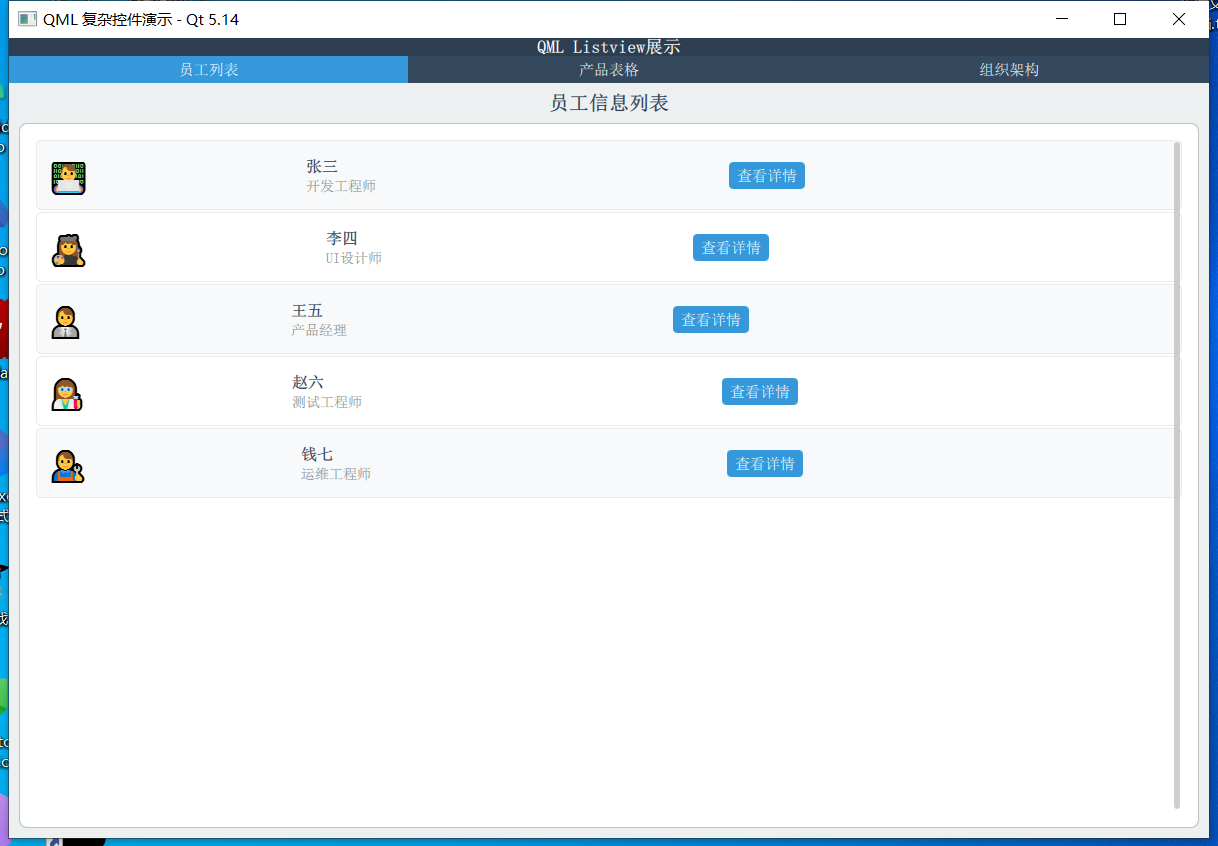
文章的目的为了记录使用QT QML开发学习的经历。开发流程和要点有些记忆模糊,赶紧记录,防止忘记。
相关链接:
开源 C++ QT QML 开发(一)基本介绍
开源 C++ QT QML 开发(二)工程结构
开源 C++ QT QML 开发(三)常用控件
开源 C++ QT QML 开发(四)复杂控件--Listview
开源 C++ QT QML 开发(五)复杂控件--Gridview
推荐链接:
开源 C# 快速开发(一)基础知识
开源 C# 快速开发(二)基础控件
开源 C# 快速开发(三)复杂控件
开源 C# 快速开发(四)自定义控件--波形图
开源 C# 快速开发(五)自定义控件--仪表盘
开源 C# 快速开发(六)自定义控件--圆环
开源 C# 快速开发(七)通讯--串口
开源 C# 快速开发(八)通讯--Tcp服务器端
开源 C# 快速开发(九)通讯--Tcp客户端
开源 C# 快速开发(十)通讯--http客户端
开源 C# 快速开发(十一)线程
开源 C# 快速开发(十二)进程监控
开源 C# 快速开发(十三)进程--管道通讯
开源 C# 快速开发(十四)进程--内存映射
开源 C# 快速开发(十五)进程--windows消息
开源 C# 快速开发(十六)数据库--sqlserver增删改查
本章节主要内容是:介绍复杂控件Listview的使用方法,包括普通列表,表格,树形列表。
1.代码分析
2.所有源码
3.效果演示
一、代码分析
以下是对修正后代码的详细函数级分析:
1. 主应用程序窗口 (ApplicationWindow)
ApplicationWindow {
    id: window
    width: 1200
    height: 800
    title: "QML 复杂控件演示 - Qt 5.14"
    visible: true
功能分析:
ApplicationWindow 是应用程序的主窗口
id: window 为窗口创建唯一标识符,便于在其他组件中引用
width 和 height 设置窗口初始尺寸
visible: true 使窗口可见,如果为 false 则窗口隐藏
2. 数据模型定义
ListModel - 员工列表数据
ListModel {
id: listModel
ListElement { name: "张三"; role: "开发工程师"; avatar: "" }
// ... 更多数据
}
函数分析:
ListModel 是动态数据模型,支持运行时修改
每个 ListElement 创建一个数据项
数据通过 model.name、model.role 等方式在委托中访问
树形结构数据模型
ListModel {
    id: treeModel
    ListElement {
        name: "公司组织"; depth: 0; isExpanded: true; hasChildren: true; isCategory: true
    }
    // ... 更多层级数据
}
关键属性分析:
depth: 控制缩进层级,实现树形视觉效果
isExpanded: 控制节点展开状态
hasChildren: 标识是否有子节点,决定显示箭头还是圆点
isCategory: 区分分类节点和叶子节点,影响文字样式
3. 员工列表页面 (ListView 实现)
ListView 配置
函数分析:
anchors.fill: parent - 填充父容器
ListView {
    id: listView
    anchors.fill: parent
    anchors.margins: 5
    model: listModel
    clip: true
    spacing: 2
}
anchors.margins: 5 - 设置边距
model: listModel - 绑定数据模型
clip: true - 启用裁剪,防止内容溢出
spacing: 2 - 设置项间距
委托函数 (Delegate)
delegate: Rectangle {
    width: listView.width
    height: 70
    color: index % 2 === 0 ? "#f8f9fa" : "#ffffff"
    radius: 5
    border.color: "#e9ecef"
}
函数分析:
width: listView.width - 宽度与 ListView 相同
height: 70 - 固定高度
color: index % 2 === 0 ? "#f8f9fa" : "#ffffff" - 交替背景色
index 是 ListView 提供的当前项索引
使用三元运算符实现奇偶行不同颜色
按钮点击处理
Button {
    // ... 样式配置
    onClicked: console.log("查看员工:", name)
}
函数分析:
onClicked - 按钮点击信号处理器
console.log("查看员工:", name) - 输出日志,实际应用中可替换为具体业务逻辑
name 来自数据模型的 name 字段
4. 产品表格页面 (ListView 模拟 TableView)
表头实现
header: Row {
    width: tableView.width
    height: 50
    spacing: 1
    Repeater {
        model: ["产品名称", "分类", "价格", "库存"]
        Rectangle {
            width: {
                switch(modelData) {
                    case "产品名称": return 200;
                    case "分类": return 150;
                    case "价格": return 120;
                    case "库存": return 100;
                    default: return 100;
                }
            }
            // ... 其他配置
        }
    }
}
函数分析:
Repeater 根据字符串数组动态创建表头单元格
modelData 是 Repeater 中当前迭代的数据项
switch(modelData) 根据列名返回不同的列宽
使用函数表达式动态计算宽度表格数据行
delegate: Row {
    width: tableView.width
    height: 50
    spacing: 1
    property var columnData: [product, category, price, stock]
    property var columnWidths: [200, 150, 120, 100]
    Repeater {
        model: 4
        Rectangle {
            width: parent.columnWidths[index]
            height: 50
            color: {
                if (tableView.index % 2 === 0) {
                    return "#f8f9fa"
                } else {
                    return "#ffffff"
                }
            }
            // ... 文字颜色逻辑
        }
    }
}
关键函数分析:
property var columnData - 定义行数据数组
property var columnWidths - 定义列宽数组
Repeater { model: 4 } - 创建4个单元格
parent.columnWidths[index] - 根据索引获取对应列宽
tableView.index % 2 === 0 - 实现表格行的斑马纹效果
条件颜色设置
color: {
    if (index === 2) { // 价格列
        return "#e74c3c"
    } else if (index === 3) { // 库存列
        return parseInt(parent.parent.columnData[index]) < 50 ? "#e67e22" : "#27ae60"
    } else {
        return "#2c3e50"
    }
}
函数分析:
使用多条件判断设置不同列的文字颜色
parseInt(parent.parent.columnData[index]) - 将库存字符串转换为数字
三元运算符 ? : 根据库存数量返回不同颜色
5. 组织架构页面 (ListView 模拟 TreeView)
可见性控制函数
function isItemVisible() {
    // 简单的可见性检查(实际项目中需要更复杂的逻辑)
    if (depth === 0) return true;
    // 这里简化处理,实际应该检查父级是否展开
    return true;
}
函数分析:
这个函数控制树节点是否显示
当前实现是简化版本,实际需要递归检查所有父级节点的展开状态
depth === 0 确保根节点始终显示
树形缩进实现
Row {
    anchors.fill: parent
    anchors.leftMargin: 10 + depth * 20  // 关键缩进计算
    spacing: 8
    // ... 图标和文字
}
函数分析:
anchors.leftMargin: 10 + depth * 20 - 根据深度计算缩进
depth 来自数据模型的层级信息
每增加一层,缩进增加20像素
基础缩进10像素
动态图标显示
Text {
    text: {
        if (hasChildren) {
            return isExpanded ? "▼" : "►"
        } else {
            return "•"
        }
    }
    // ... 样式
}
函数分析:
使用函数表达式动态返回图标字符
hasChildren 判断是否为父节点
isExpanded ? "▼" : "►" - 根据展开状态返回向下或向右箭头
叶子节点显示圆点符号
点击事件处理
MouseArea {
    anchors.fill: parent
    onClicked: {
        console.log("点击节点:", name, "深度:", depth)
        if (hasChildren) {
            // 切换展开状态
            treeModel.setProperty(index, "isExpanded", !isExpanded)
        }
    }
}
关键函数分析:
onClicked - 鼠标点击事件处理器
console.log - 调试输出,显示节点信息
treeModel.setProperty(index, "isExpanded", !isExpanded) - 动态修改模型数据
index - 当前项在模型中的索引
"isExpanded" - 要修改的属性名
!isExpanded - 取反当前值,实现切换
6. 布局和样式函数
StackLayout 页面切换
StackLayout {
    currentIndex: tabBar.currentIndex
    // ... 三个页面
}
函数分析:
currentIndex 绑定到 TabBar 的当前选中索引
当用户切换选项卡时自动切换显示的页面
条件样式设置
qaml
background: Rectangle {
color: tabBar.currentIndex === 0 ? "#3498db" : "transparent"
}
函数分析:
使用条件表达式设置选中状态的背景色
当前选项卡显示蓝色,其他为透明
二、所有源码
main.qml文件源码
import QtQuick 2.14
import QtQuick.Controls 2.14
import QtQuick.Layouts 1.14
import Qt.labs.qmlmodels 1.0
ApplicationWindow {id: windowwidth: 1200height: 800title: "QML 复杂控件演示 - Qt 5.14"visible: true// 模拟数据模型ListModel {id: listModelListElement { name: "张三"; role: "开发工程师"; avatar: "" }ListElement { name: "李四"; role: "UI设计师"; avatar: "" }ListElement { name: "王五"; role: "产品经理"; avatar: "" }ListElement { name: "赵六"; role: "测试工程师"; avatar: "" }ListElement { name: "钱七"; role: "运维工程师"; avatar: "" }}ListModel {id: tableModelListElement { product: "笔记本电脑"; category: "电子产品"; price: "¥5,999"; stock: "45" }ListElement { product: "无线鼠标"; category: "电子产品"; price: "¥199"; stock: "120" }ListElement { product: "机械键盘"; category: "电子产品"; price: "¥699"; stock: "78" }ListElement { product: "办公椅"; category: "家具"; price: "¥1,299"; stock: "23" }ListElement { product: "显示器"; category: "电子产品"; price: "¥2,499"; stock: "34" }}// 树形结构数据模型ListModel {id: treeModelListElement {name: "公司组织"; depth: 0; isExpanded: true; hasChildren: true; isCategory: true}ListElement {name: "技术部"; depth: 1; isExpanded: true; hasChildren: true; isCategory: true}ListElement {name: "前端组"; depth: 2; isExpanded: false; hasChildren: false; isCategory: false}ListElement {name: "后端组"; depth: 2; isExpanded: false; hasChildren: false; isCategory: false}ListElement {name: "移动端组"; depth: 2; isExpanded: false; hasChildren: false; isCategory: false}ListElement {name: "设计部"; depth: 1; isExpanded: false; hasChildren: true; isCategory: true}ListElement {name: "UI设计"; depth: 2; isExpanded: false; hasChildren: false; isCategory: false}ListElement {name: "UX设计"; depth: 2; isExpanded: false; hasChildren: false; isCategory: false}ListElement {name: "产品部"; depth: 1; isExpanded: false; hasChildren: true; isCategory: true}ListElement {name: "产品策划"; depth: 2; isExpanded: false; hasChildren: false; isCategory: false}ListElement {name: "需求分析"; depth: 2; isExpanded: false; hasChildren: false; isCategory: false}}// 自定义标题栏header: ToolBar {background: Rectangle {color: "#2c3e50"}Label {text: "QML Listview展示"color: "white"font.pixelSize: 18font.bold: trueanchors.centerIn: parent}}// 主内容区域Page {anchors.fill: parentbackground: Rectangle {color: "#ecf0f1"}TabBar {id: tabBarwidth: parent.widthbackground: Rectangle {color: "#34495e"}TabButton {text: "员工列表"background: Rectangle {color: tabBar.currentIndex === 0 ? "#3498db" : "transparent"}contentItem: Text {text: parent.textcolor: "white"horizontalAlignment: Text.AlignHCenterverticalAlignment: Text.AlignVCenter}}TabButton {text: "产品表格"background: Rectangle {color: tabBar.currentIndex === 1 ? "#3498db" : "transparent"}contentItem: Text {text: parent.textcolor: "white"horizontalAlignment: Text.AlignHCenterverticalAlignment: Text.AlignVCenter}}TabButton {text: "组织架构"background: Rectangle {color: tabBar.currentIndex === 2 ? "#3498db" : "transparent"}contentItem: Text {text: parent.textcolor: "white"horizontalAlignment: Text.AlignHCenterverticalAlignment: Text.AlignVCenter}}}StackLayout {anchors {top: tabBar.bottomleft: parent.leftright: parent.rightbottom: parent.bottommargins: 10}currentIndex: tabBar.currentIndex// ListView 页面Rectangle {color: "transparent"ColumnLayout {anchors.fill: parentspacing: 10Label {text: "员工信息列表"font.pixelSize: 20font.bold: truecolor: "#2c3e50"Layout.alignment: Qt.AlignHCenter}Frame {Layout.fillWidth: trueLayout.fillHeight: truebackground: Rectangle {color: "white"radius: 8border.color: "#bdc3c7"}ListView {id: listViewanchors.fill: parentanchors.margins: 5model: listModelclip: truespacing: 2delegate: Rectangle {width: listView.widthheight: 70color: index % 2 === 0 ? "#f8f9fa" : "#ffffff"radius: 5border.color: "#e9ecef"RowLayout {anchors.fill: parentanchors.margins: 10spacing: 15Text {text: avatarfont.pixelSize: 30Layout.alignment: Qt.AlignVCenter}ColumnLayout {Layout.fillWidth: truespacing: 5Text {text: namefont.pixelSize: 16font.bold: truecolor: "#2c3e50"}Text {text: rolefont.pixelSize: 14color: "#7f8c8d"}}Button {text: "查看详情"Layout.alignment: Qt.AlignVCenterbackground: Rectangle {color: "#3498db"radius: 4}contentItem: Text {text: parent.textcolor: "white"horizontalAlignment: Text.AlignHCenterverticalAlignment: Text.AlignVCenter}onClicked: console.log("查看员工:", name)}}}ScrollBar.vertical: ScrollBar {policy: ScrollBar.AlwaysOn}}}}}// TableView 页面Rectangle {color: "transparent"ColumnLayout {anchors.fill: parentspacing: 10Label {text: "产品库存表格"font.pixelSize: 20font.bold: truecolor: "#2c3e50"Layout.alignment: Qt.AlignHCenter}Frame {Layout.fillWidth: trueLayout.fillHeight: truebackground: Rectangle {color: "white"radius: 8border.color: "#bdc3c7"}ListView {id: tableViewanchors.fill: parentanchors.margins: 5model: tableModelclip: trueinteractive: falseheader: Row {width: tableView.widthheight: 50spacing: 1Repeater {model: ["产品名称", "分类", "价格", "库存"]Rectangle {width: {switch(modelData) {case "产品名称": return 200;case "分类": return 150;case "价格": return 120;case "库存": return 100;default: return 100;}}height: 50color: "#34495e"Text {text: modelDataanchors.centerIn: parentcolor: "white"font.bold: truefont.pixelSize: 14}}}}delegate: Row {width: tableView.widthheight: 50spacing: 1property var columnData: [product, category, price, stock]property var columnWidths: [200, 150, 120, 100]Repeater {model: 4Rectangle {width: parent.columnWidths[index]height: 50color: {if (tableView.index % 2 === 0) {return "#f8f9fa"} else {return "#ffffff"}}border.color: "#e9ecef"Text {text: parent.parent.columnData[index]anchors.centerIn: parentcolor: {if (index === 2) { // 价格列return "#e74c3c"} else if (index === 3) { // 库存列return parseInt(parent.parent.columnData[index]) < 50 ? "#e67e22" : "#27ae60"} else {return "#2c3e50"}}font.pixelSize: 14font.bold: index === 2 || index === 3}}}}ScrollBar.vertical: ScrollBar {policy: ScrollBar.AlwaysOn}}}}}// TreeView 页面 (使用 ListView 模拟)Rectangle {color: "transparent"ColumnLayout {anchors.fill: parentspacing: 10Label {text: "公司组织架构"font.pixelSize: 20font.bold: truecolor: "#2c3e50"Layout.alignment: Qt.AlignHCenter}Frame {Layout.fillWidth: trueLayout.fillHeight: truebackground: Rectangle {color: "white"radius: 8border.color: "#bdc3c7"}ListView {id: treeListViewanchors.fill: parentanchors.margins: 5model: treeModelclip: truedelegate: Item {width: treeListView.widthheight: 40visible: isItemVisible()function isItemVisible() {// 简单的可见性检查(实际项目中需要更复杂的逻辑)if (depth === 0) return true;// 这里简化处理,实际应该检查父级是否展开return true;}Rectangle {anchors.fill: parentcolor: index % 2 === 0 ? "#f8f9fa" : "#ffffff"Row {anchors.fill: parentanchors.leftMargin: 10 + depth * 20spacing: 8Text {text: {if (hasChildren) {return isExpanded ? "▼" : "►"} else {return "•"}}color: "#3498db"font.pixelSize: 12anchors.verticalCenter: parent.verticalCenter}Text {text: namecolor: isCategory ? "#2c3e50" : "#7f8c8d"font.pixelSize: 14font.bold: isCategoryanchors.verticalCenter: parent.verticalCenter}}}MouseArea {anchors.fill: parentonClicked: {console.log("点击节点:", name, "深度:", depth)if (hasChildren) {// 切换展开状态treeModel.setProperty(index, "isExpanded", !isExpanded)}}}}ScrollBar.vertical: ScrollBar {policy: ScrollBar.AlwaysOn}}}}}}}
}TreeElement.qml文件源码// TreeModel.qml
pragma Singleton
import QtQml 2.14
QtObject {id: rootproperty list childrenfunction appendChild(element) {children.push(element)}
} TreeModel.qml文件源码
// TreeModel.qml
pragma Singleton
import QtQml 2.14
QtObject {id: rootproperty list childrenfunction appendChild(element) {children.push(element)}
} 三、效果演示